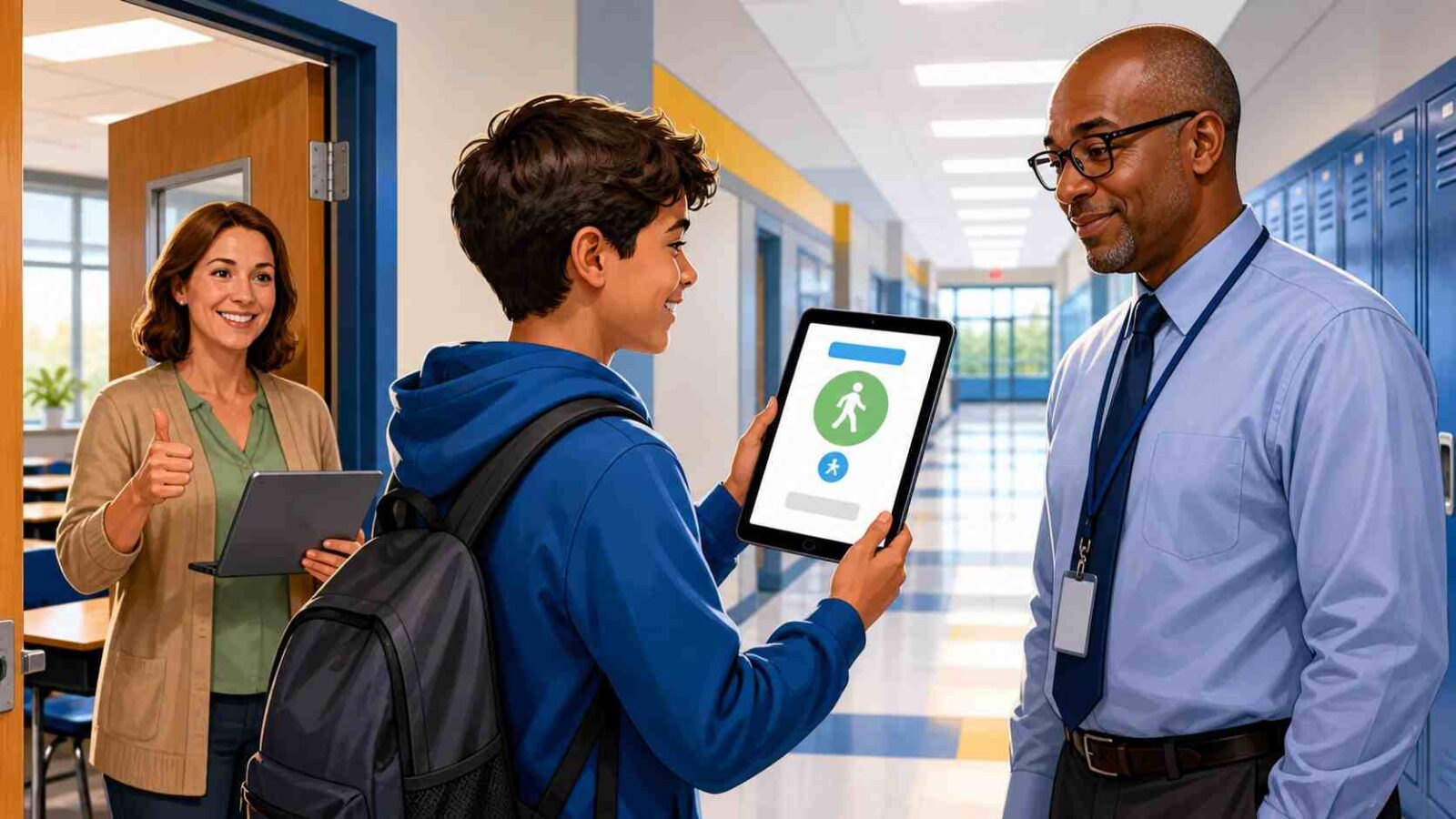
eHall Pass is a digital hall pass system schools use to approve, track, and manage student movement outside class. Students request passes online, staff approve them, and administrators review hallway activity. If your school now calls it Securly Pass, the daily purpose is still the same: controlled, documented movement.
What Is eHall Pass?
eHall Pass replaces paper passes with a controlled digital workflow. Students choose a destination, teachers approve or deny the request, and staff confirm whether a pass is active.
The system is not only a login page. It connects classroom permission, hallway supervision, timing, and safety expectations.
Some districts still say eHallPass. Others use Securly Pass because the platform sits under Securly’s school safety products.
How eHall Pass Works
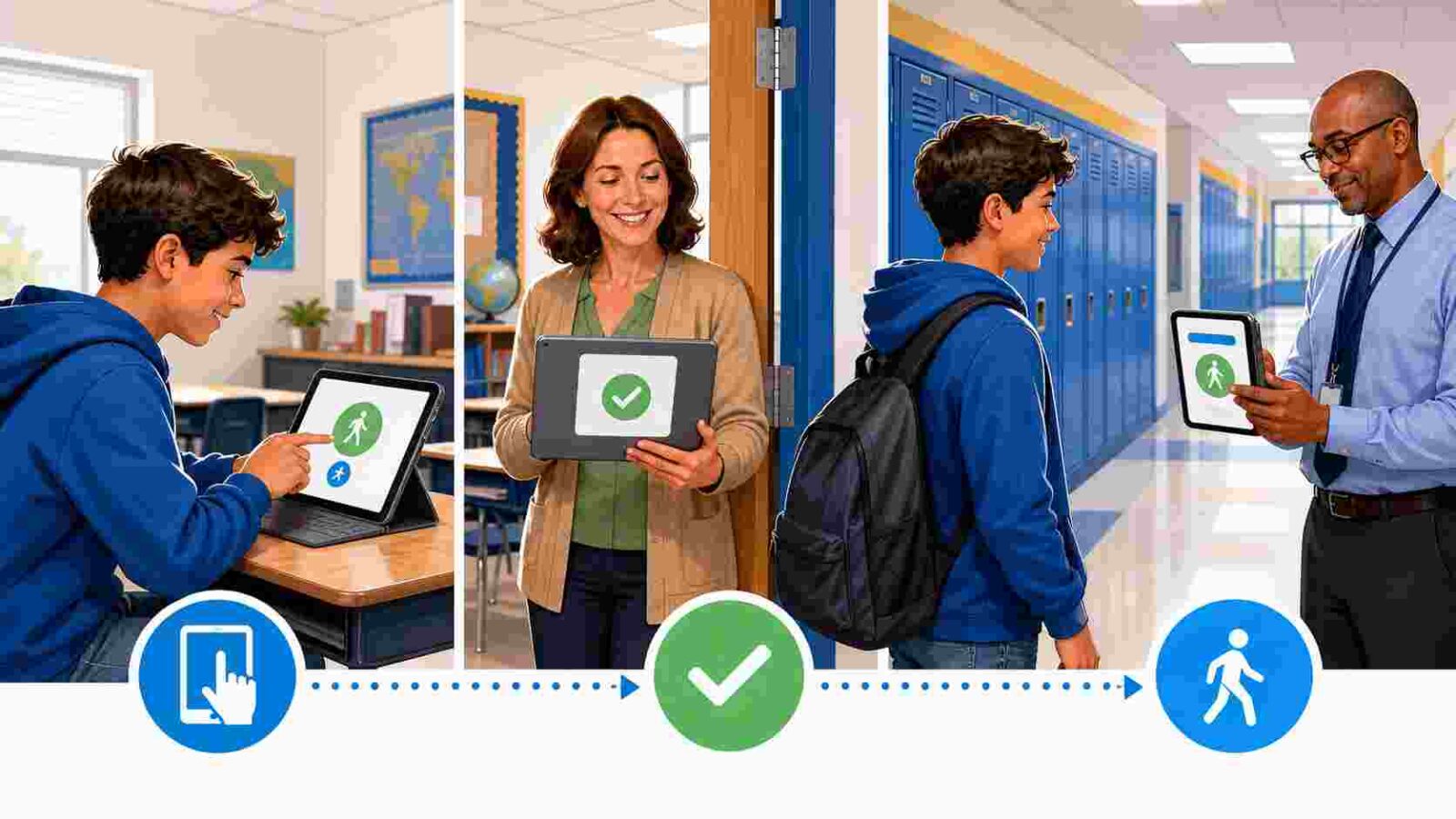
A student signs in, selects a destination, submits the pass, waits for approval, leaves only after approval, and ends the pass when the trip is finished.
Teachers can approve, deny, adjust, or create a pass for a student who cannot access a device. Hall staff can check whether the pass is active.
| Area | Paper Pass | eHall Pass / Securly Pass |
|---|---|---|
| Approval | Handwritten | Digital approval record |
| Visibility | One classroom | Staff dashboard view |
| Timing | Manual | Start and elapsed time visible |
| Pattern review | Weak | Reports show repeated issues |
| No-device support | Paper note | Teacher, kiosk, or proxy pass |
eHall Pass Login on a Chromebook
- Open the official school portal or district eHall Pass link.
- Choose your district option: Google, Microsoft, Clever, or ClassLink.
- Use your school account, not a personal email.
- Wait for the dashboard to load.
- Select the correct destination and submit.
- Stay in class until approval appears.
Securly’s school login page supports Google, Microsoft Azure AD, Clever, and ClassLink. Choosing the wrong button can trigger a login loop instead of opening your dashboard.
eHall Pass Login on Mobile
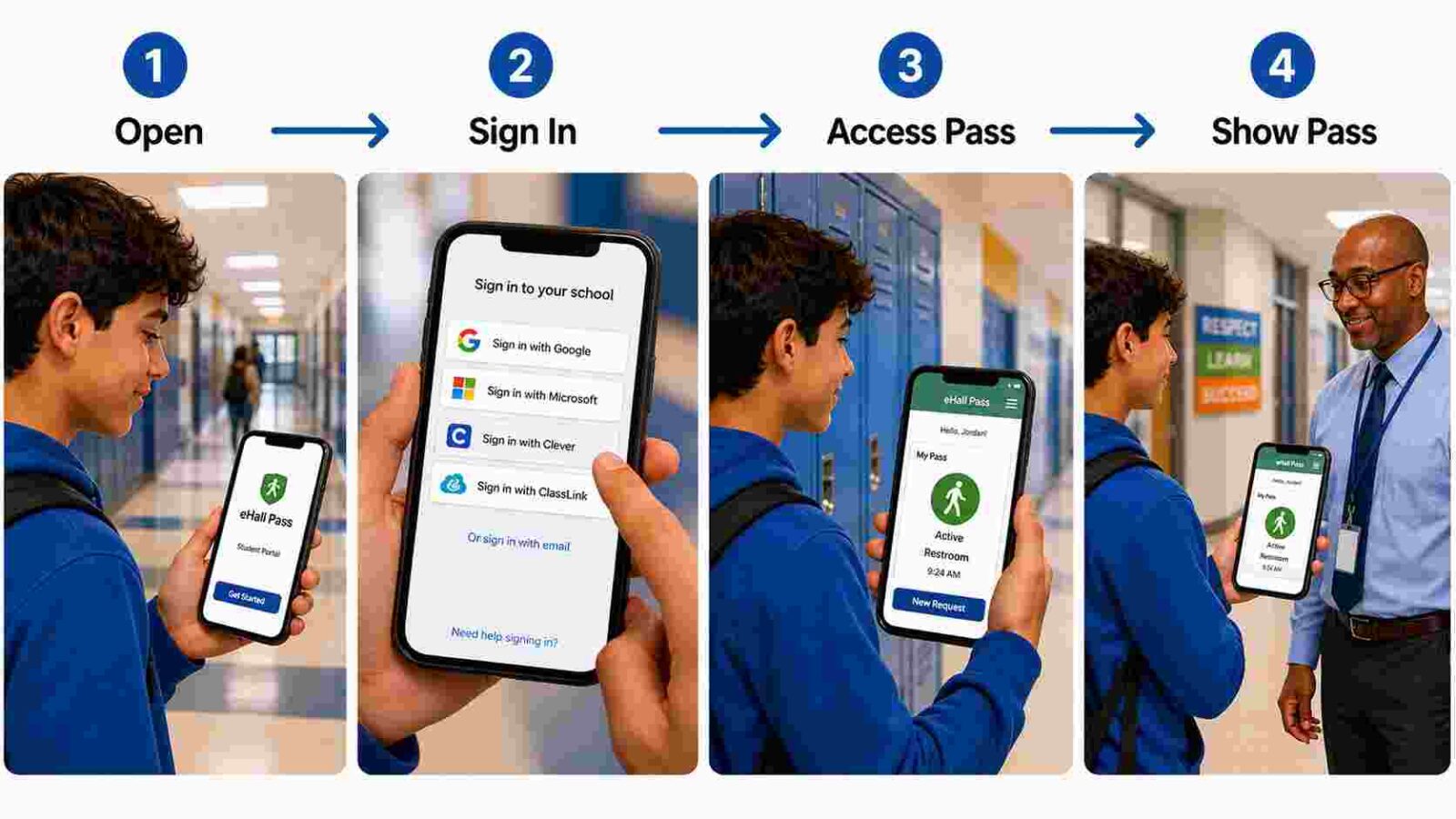
- Open the approved app or browser link.
- Select the same identity provider used on school devices.
- Allow the redirect back to Securly Pass.
- Do not close the browser during authentication.
- If the app loops, switch to browser or clear the app cache.
- If phones are restricted, use a school device, kiosk, or teacher-created pass.
Mobile access depends on school policy. Having a phone does not automatically mean you may use it for a pass.
Real-World Troubleshooting
Basic advice like “check Wi-Fi” is not enough. Most eHall Pass login problems come from identity-provider mismatch, stale sessions, disabled JavaScript, wrong portals, or roster sync delays.
If the screen says “Please enable JavaScript”, the browser is blocking a required script. Use Chrome, update the browser, disable strict content blockers, or try the school-managed device.
If you get stuck in a Clever to Securly login loop, sign out of Clever, close all school tabs, reopen the district portal, and launch Securly Pass from the approved Clever tile.
If your district moved from Clever to ClassLink, old bookmarks may point to the wrong route. Use the ClassLink LaunchPad tile and ask IT to remove outdated shortcuts.
If classes, teachers, or destinations are missing, the issue may be rostering. Report your name, school, grade, and missing class.
Pro Tip for Students: Screenshot the error message. “ClassLink redirects me back to login” gives IT something specific to fix.
Teacher Workflow and Hallway Control
Teachers should treat eHall Pass as a classroom management system, not a background app. Rules must be clear before requests start.
Approve passes based on timing, destination, classroom activity, and school policy. Deny or delay requests when instruction, testing, safety, or hallway volume requires it.
Pro Tip for Teachers: During high-traffic periods, approve fewer passes at once and use destination limits. The goal is controlled movement, not fast approval.
Teachers should monitor patterns. Repeated long passes, frequent requests at the same time, or attempts to meet another student require documentation and follow-up.
Parent Privacy Questions Answered
Parents should know what the system records. A digital hall pass may include student identity, pass time, destination, approval status, staff actions, and activity history.
Securly says its services are designed around student privacy obligations, including FERPA and COPPA. It also says schools may act as the parent’s agent for COPPA consent when using the service for students under 13.
Securly’s support material says student data shared with Pass is encrypted in transit using TLS 1.2 or stronger and encrypted at rest using AES-256 or stronger.
This does not remove the school’s responsibility. Parents should ask who can access pass records, retention time, disciplinary use, and correction procedures.
Best Practices for Schools
Schools should publish one official login link and name the correct route: Google, Clever, ClassLink, Microsoft, or another provider.
Students should know when passes are allowed, when they are paused, what counts as excessive time, and what happens when a pass is left open.
Review reports with context. Data can show patterns, but it cannot explain every medical need, accommodation, anxiety issue, or emergency.
Also Read: How to Find Archived Emails in Gmail [A Step-by-Step Guide]
Final Takeaway
eHall Pass works when schools use it with clear rules, clean login paths, and fair judgment. Students need exact steps, teachers need firm traffic control, and parents deserve direct privacy answers. The system should support safety and accountability without turning every hallway trip into confusion or conflict.
FAQs
Is eHall Pass the same as Securly Pass?
In many schools, yes. The name changed, but the workflow is similar.
Can I leave after submitting a pass?
No. Wait until the pass is approved.
Why does login keep looping?
You may be using the wrong SSO button, old bookmark, or expired session.
Can parents see every pass?
Usually not directly. Ask the school about access and records.
What if I have no device?
Ask the teacher to create a pass or use the kiosk process.